Modules

Five focused surfaces, one consistent workspace.

Tasks, notes, events, documents and scratchpad, each with a screen built for its kind of work, in one app that looks and works the same throughout.

TasksNotesEventsDocumentsScratchpad
Everything below works without an account Except sync, shared lists, and the AI helpers, which need a plan.
Shared structure Left menu, floating actions, compact panels, and module colours stay aligned.

Module details

Each surface is shaped around the kind of work it holds.

The goal is not one giant generic inbox. The goal is a workspace where capture, planning, writing, scheduling, and file handling can stay distinct while still belonging together.

Tasks

Lists you can read at a glance, a detail sheet with everything a task can carry, and four ways to look at the same work — list, tiles, cards, or a board.

  • Due dates typed as words: "call the bank tomorrow at 9" becomes a dated task, offered as a chip you can dismiss.
  • Reminders with Done, +1 hour and Tomorrow right on the notification.
  • Repeat weekly, monthly, yearly — or every N days. An estimate, so the calendar knows how long it takes.
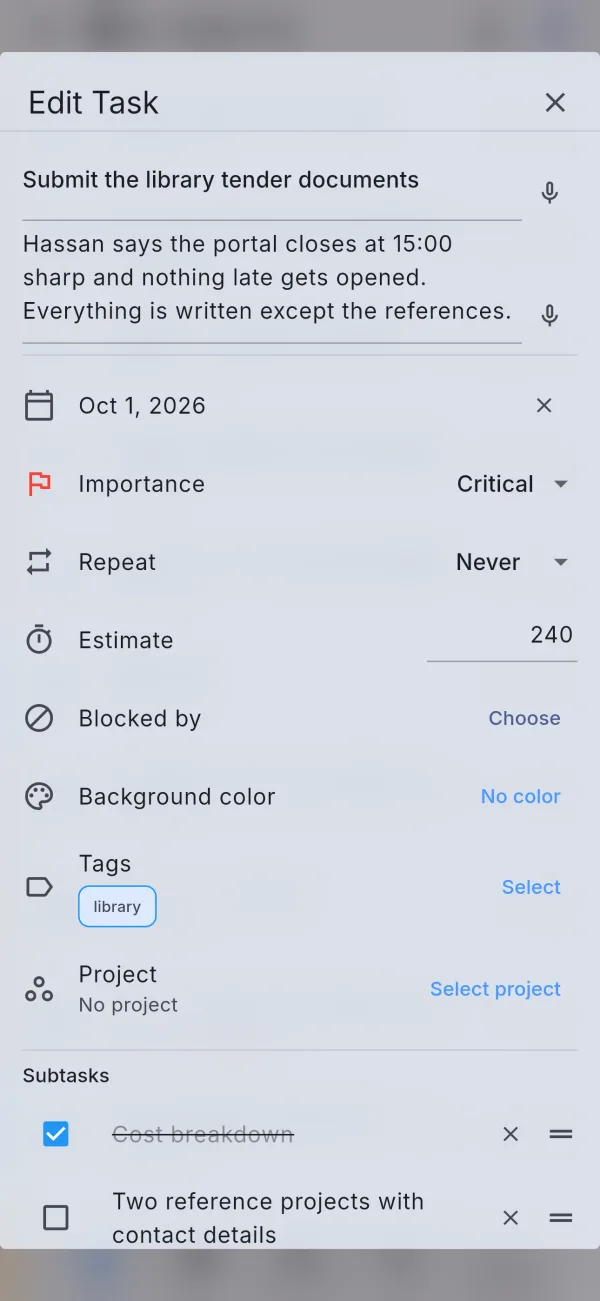
  • Subtasks, importance, tags, projects, attachments, and a "blocked by" link that keeps a task open until its blocker is done.
  • List, tiles, cards, or a Kanban board with To do / Doing / Done columns.
  • Templates for tasks you create often. Archive a list when it is over; the Trash keeps what you delete for 30 days.
  • Import from Todoist, Google Tasks or Microsoft To Do; export everything as CSV and JSON.

Readable lists first

Importance bars, overdue chips, reminder icons, and progress counters keep the list informative before you open any task.

Shared lists, assigned work

Share a list by email. Assign a task to a member, filter to what is assigned to you, and get a notification that says who assigned what — not just "something changed".

Onto the calendar

Drag today’s tasks onto the calendar as time blocks. The block is as long as the task’s estimate, and finishing the block finishes the task.
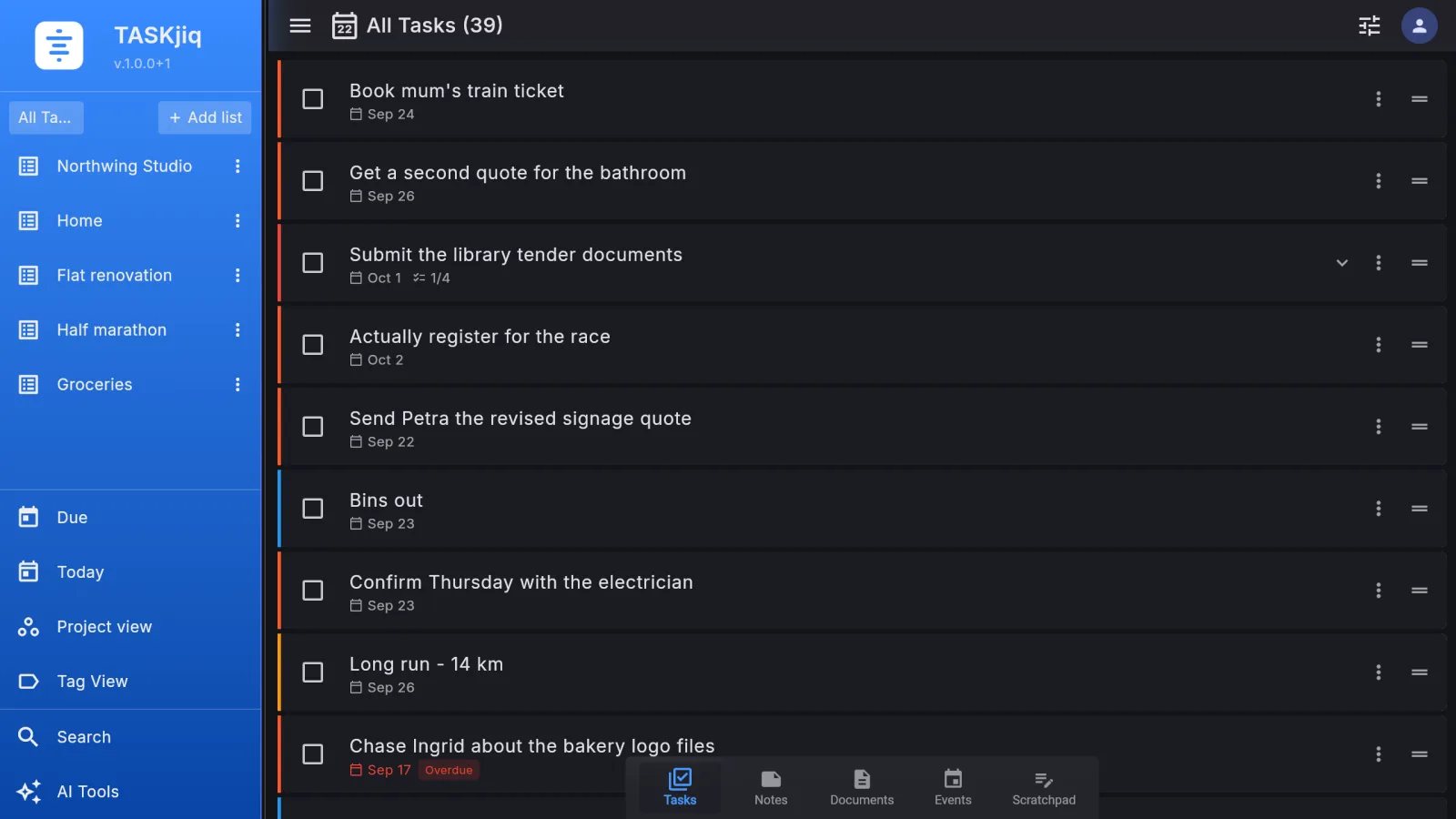
TASKjiq: A task list, in the dark theme
macOS A task list, in the dark theme
TASKjiq: Editing a task: date, importance, repeat, estimate
iOS Editing a task: date, importance, repeat, estimate

Notes

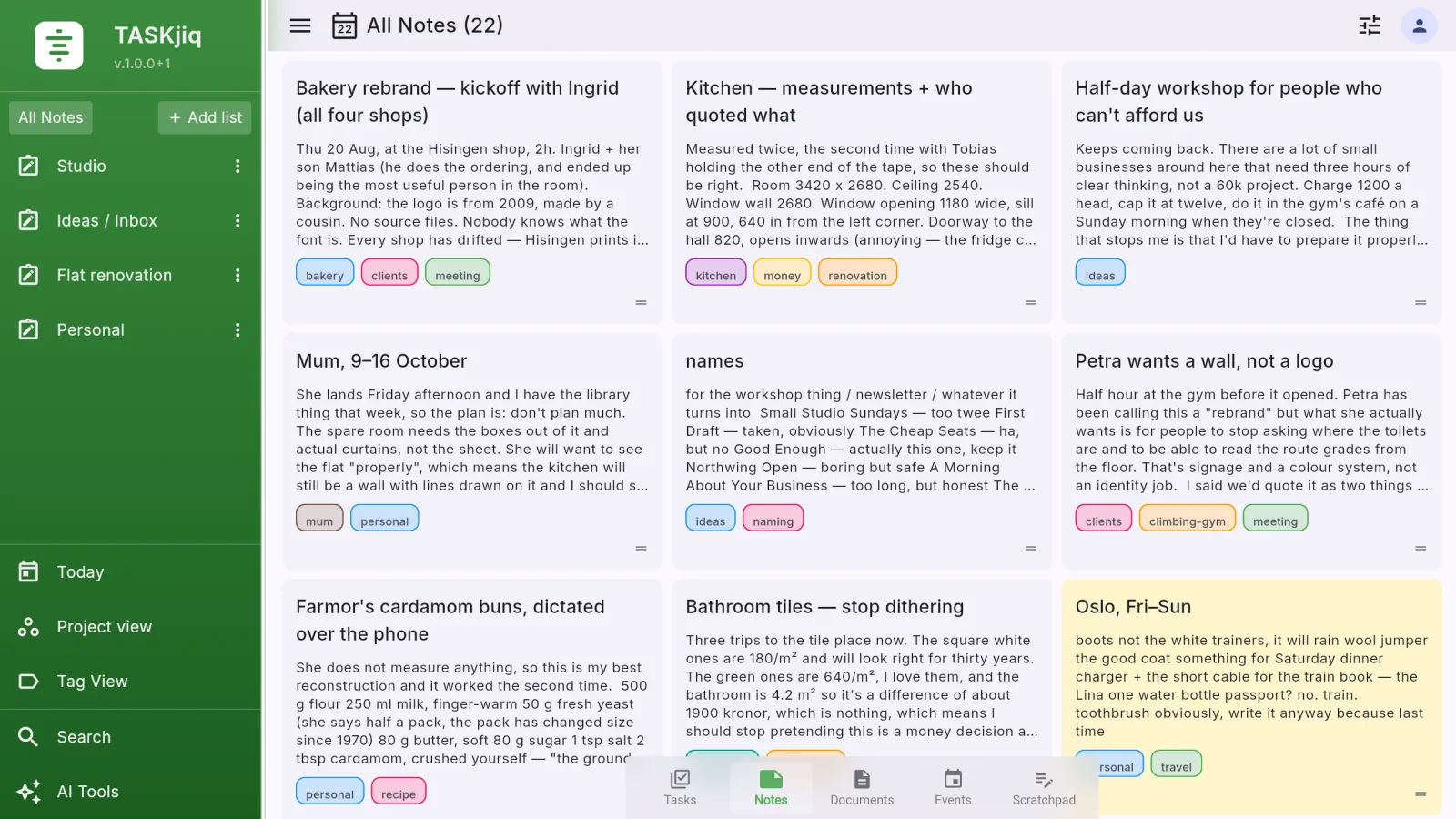
Rich text with real structure, inline images, tags, and autosave — plus the two things notes usually lack: a way out and a way in.

  • Rich text formatting, inline images, tags, colour, importance, and lists to keep notes in.
  • Dictate straight into the editor.
  • Export a note as Markdown or PDF; import Markdown back.
  • Templates for meeting notes, weekly plans, or whatever you write on repeat.
  • Cards or a list, whichever fits the moment.
  • Turn a note into tasks: the AI pulls out the action items, you pick the list.

Rich note editing

Formatted text, images, tags and colours, in an editor that stays simple.

Linked to the rest

Link a note to the task it explains, the event it came from, or the document it references. Links show from both ends.

Scoped AI room

Summarise, rewrite, or draft a note from a prompt — helpers, not a replacement for writing.

TASKjiq: Notes as cards, with tags and colours
macOS Notes as cards, with tags and colours
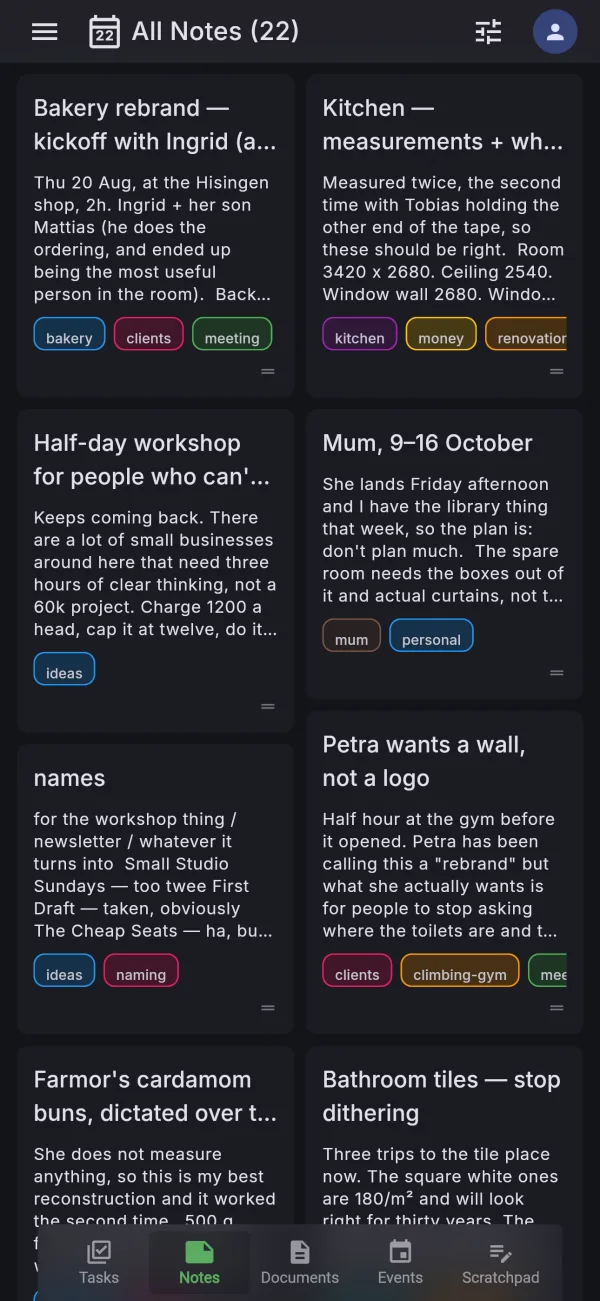
TASKjiq: The same notes in the dark theme
iOS The same notes in the dark theme

Events

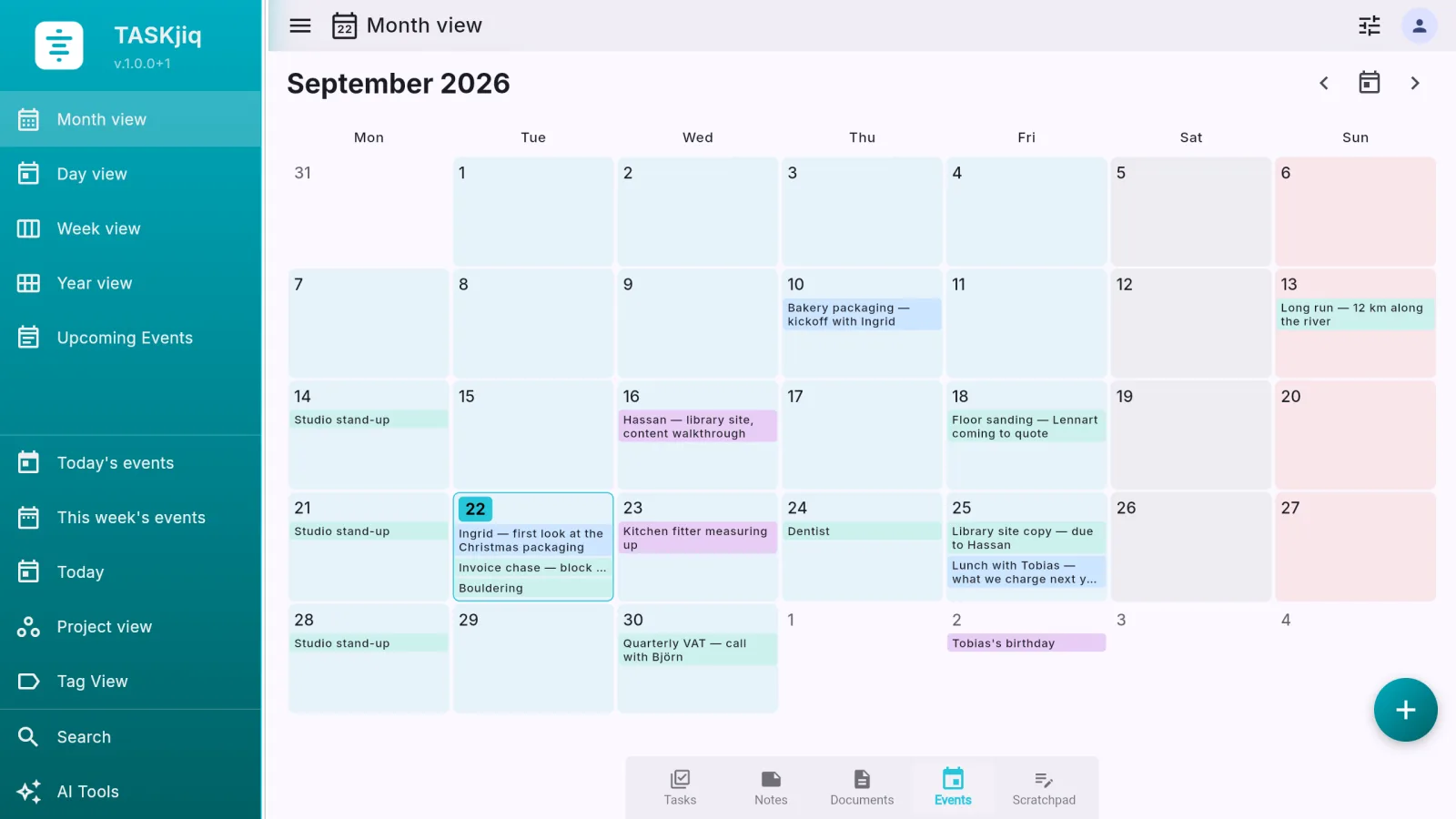
A full calendar with month, week, day, year, and upcoming views, reminders, participants, meeting links, your Google calendars — and a Today screen that puts events and tasks on one timeline.

  • Month, week, day, year, and upcoming views.
  • Google Calendar on every platform, with edits going both ways. Calendar feeds by their address.
  • Participants, meeting links, reminders, tags, colour, and repeat rules.
  • Join a meeting from the Today screen — one tap on the link.
  • Time-block tasks onto the calendar by dragging; the block carries the estimate.
  • Summarise the day or the week, or draft events from a sentence.
  • Prepare for a meeting: the AI writes the prep tasks from the event’s details.

Today and This week

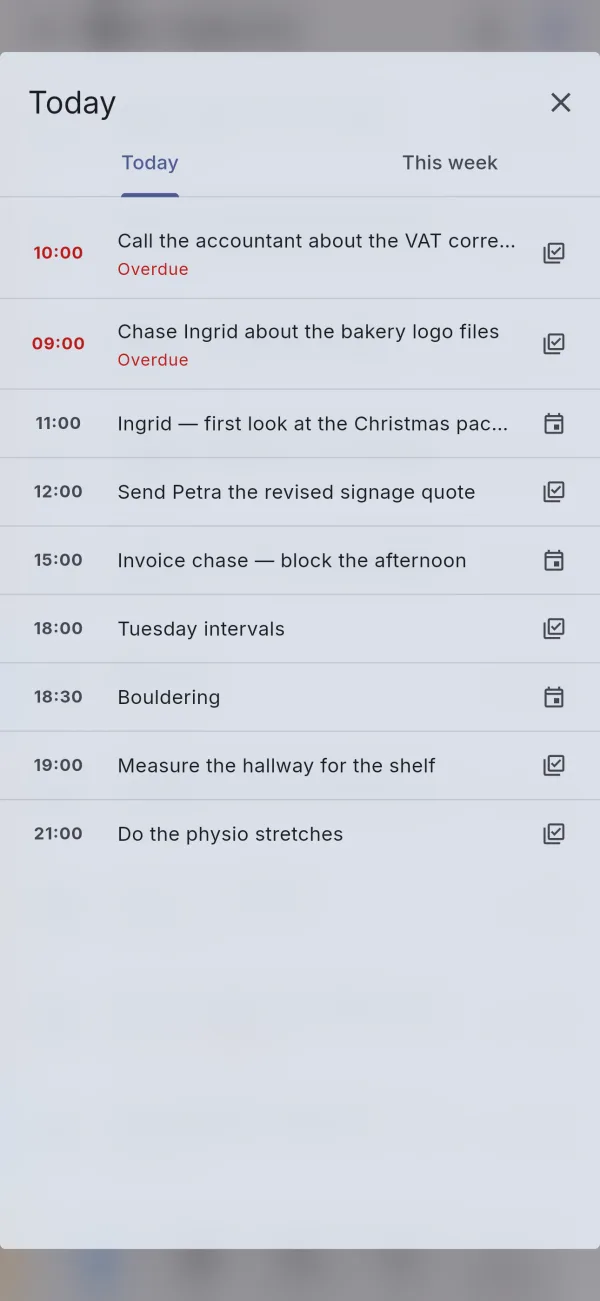
Events and tasks due, overdue first, in one list. Opens once on the first launch of the day, and lives one tap away in the top bar after that.

A weekly review

Offered on the day you choose, never sprung: what got done, what slipped, what is stale — and a place to decide about each.

Your Google calendars, next to your own

Link a Google account, choose which of its calendars to show and give each a colour. What you change in TASKjiq goes back to Google. Holiday or team calendars come in by pasting their feed address.

TASKjiq: The month view, with the week’s events
macOS The month view, with the week’s events
TASKjiq: Today: events and due tasks together
iOS Today: events and due tasks together

Documents

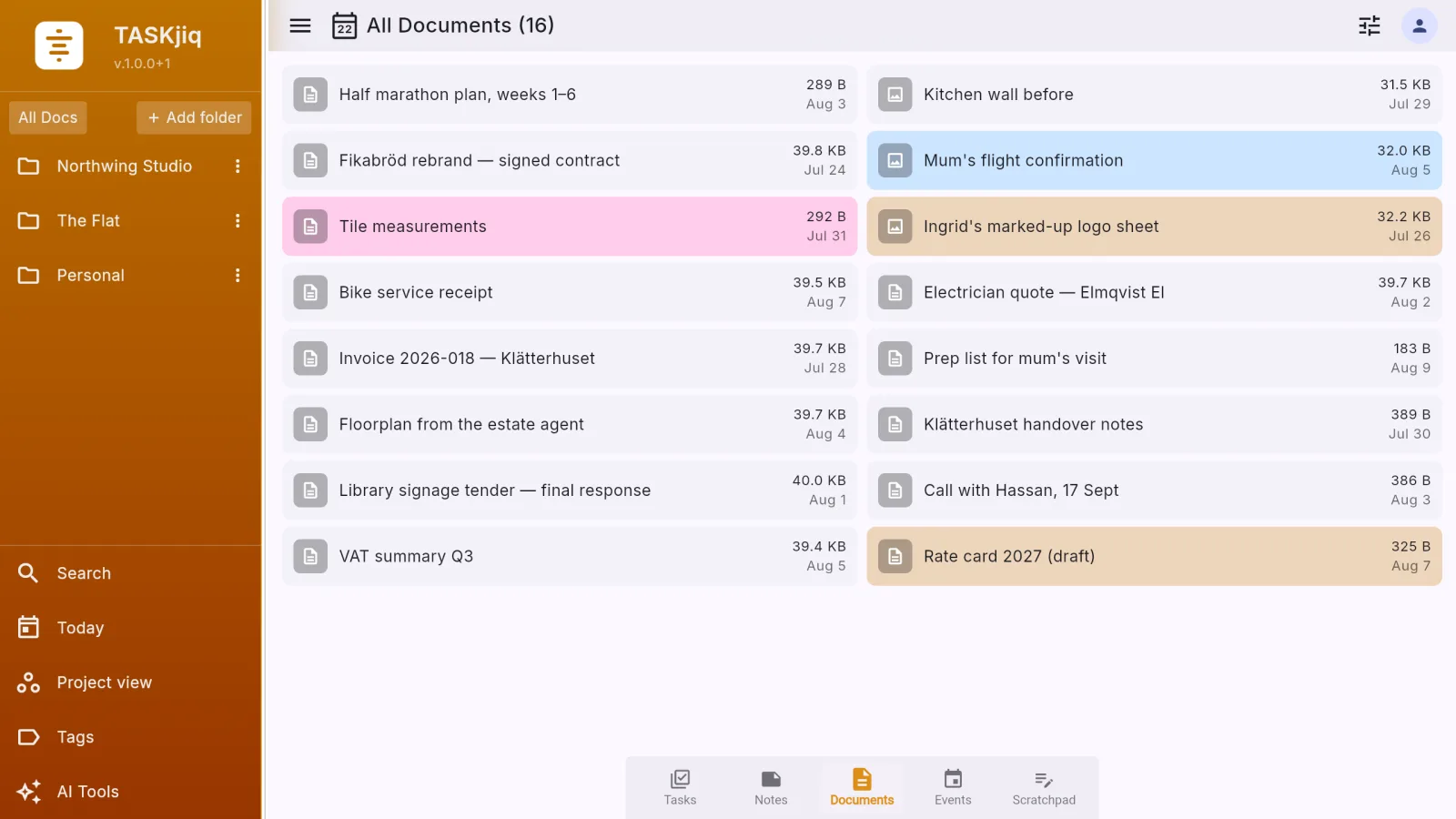
Files, photos, recordings, and video with previews, folders, tags, and notes — and, on paid plans, search that reads inside PDFs and Word files.

  • Capture audio, photos, video, and files from one add flow.
  • Preview images, text, audio, video, and metadata inline.
  • Folders inside lists, tags, sorting, drag to reorder, move between lists.
  • Notes and importance kept next to the file.
  • Search inside PDF, Word, and text files: the text is extracted once, on the server, and searched with everything else.
  • Per-file limits of 100 MB, 500 MB, or 1 GB depending on the plan, checked before the upload starts.

Mixed file intake

Recording, camera capture, and file selection all flow into the same module so your archive is not split by input method.

Inline previews

Text, audio, image, video, and general document metadata can all be reviewed without leaving the app.

Shared with the files

Share a document list and the files come with it, copied into each member’s own storage.

TASKjiq: Documents in folders, coloured as you choose
macOS Documents in folders, coloured as you choose
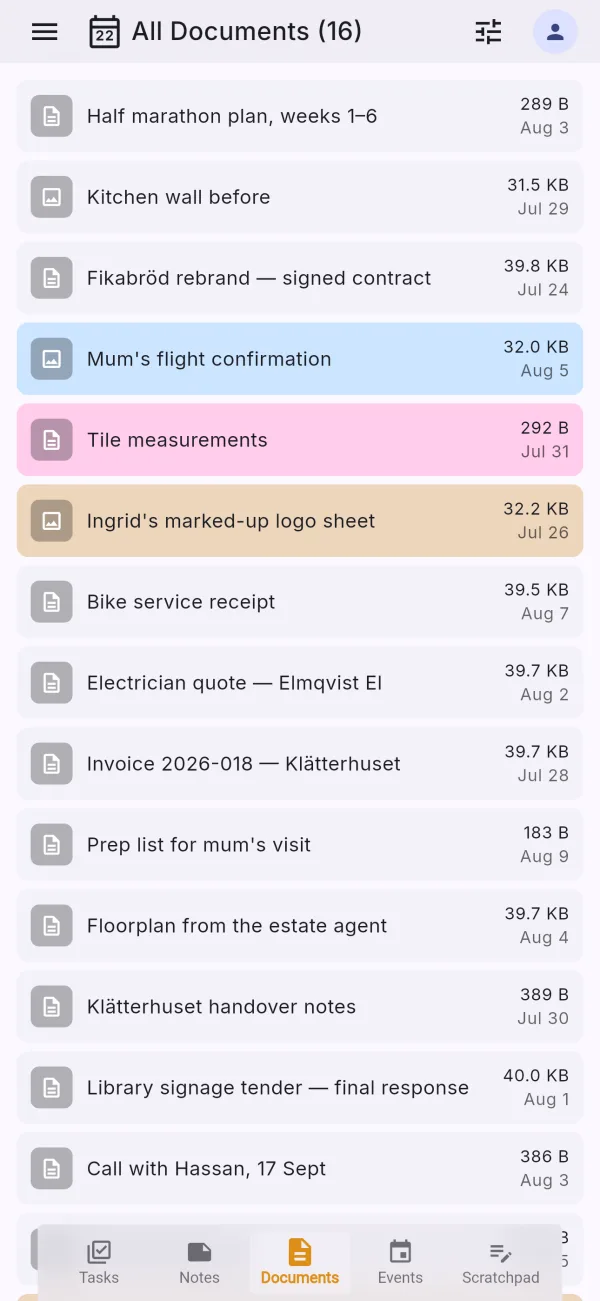
TASKjiq: The same documents on the phone
iOS The same documents on the phone

Scratchpad

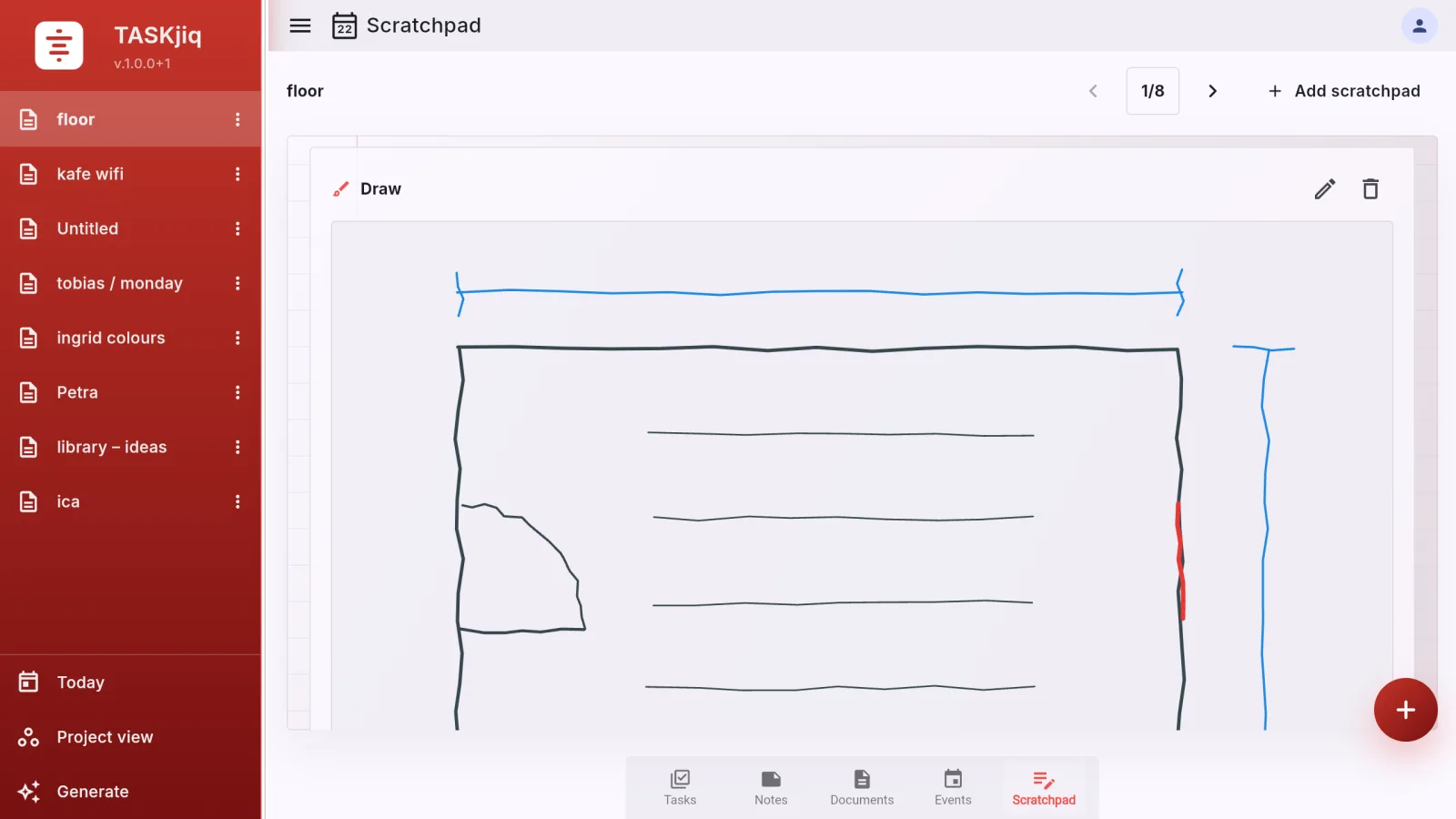
The fastest place to put something down: a multi-page mixed-input capture area for text, finger writing, drawing, voice, camera, video, and files.

  • Multiple pages, so new capture never blocks what is already on the current page.
  • Text, handwriting, drawing, voice, camera, video, and files, all autosaved.
  • Handwriting becomes text on Android and iPhone, recognised on the phone itself.
  • Keyboard, mouse, touch, camera, microphone, and file picker.
  • Generate tasks, a note, an event, or documents from a page — the AI reads what you captured, you confirm.
  • Quick capture from anywhere: long-press the + button (or a gesture you choose) and type; it lands here, or straight in the Inbox as a task when it reads like one.

Capture first, organize later

Scratchpad is designed for moments when the priority is to get something in quickly, not to classify it perfectly on arrival.

Multiple pages by design

A new page is always available, which keeps short-term capture from clogging a single endless surface.

Bridge into the rest of the app

Once the page is ready, it can seed real tasks, notes, events, or document items instead of staying as dead scratch space.

TASKjiq: A floor plan sketched on a scratchpad page
macOS A floor plan sketched on a scratchpad page
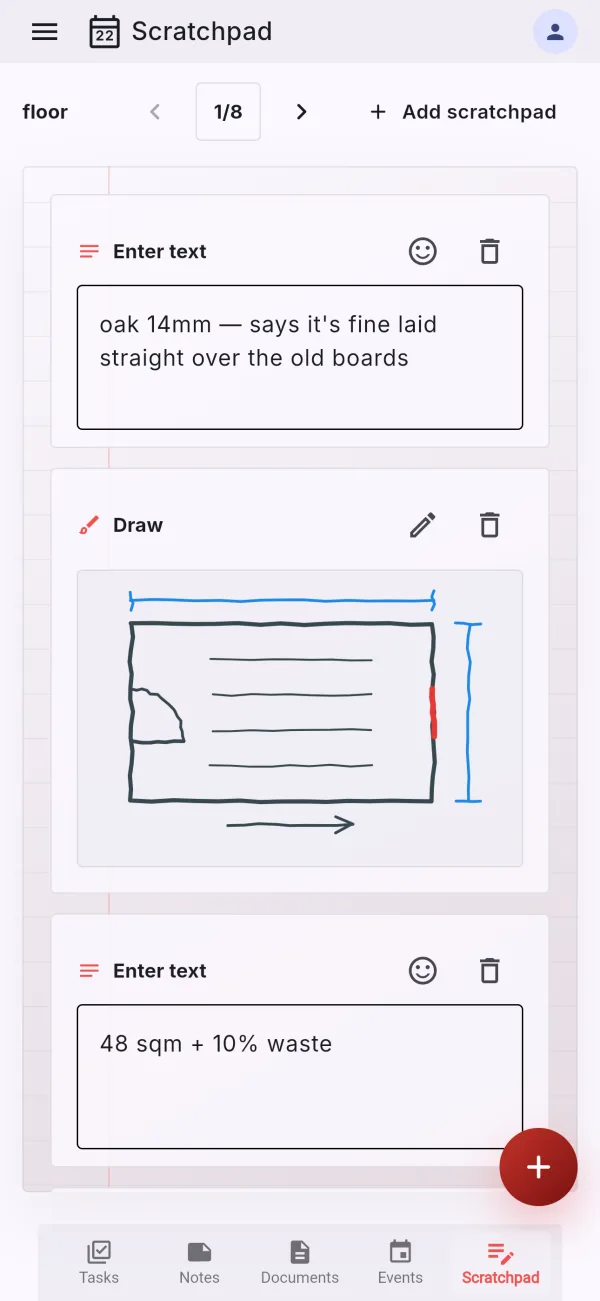
TASKjiq: Typed notes and a sketch on one page
iOS Typed notes and a sketch on one page

Across every module

What works the same way everywhere.

The day on one timeline, one search, links between records, and quick capture that works before you know where something belongs.

Today and This week

Events and tasks on one timeline, overdue first. A calendar glyph in the top bar; long-press for the week.

Search everything

One search across tasks, notes, documents, events, and scratchpad pages, grouped by module, the current one first. Swipe left on a phone, Ctrl/⌘+F on a desktop.

Links between items

A task can point at the note that explains it or the event it came from. Links show from both ends and survive a deleted target by saying so.

Templates

Save a task or a note as a starting point and apply it when creating the next one.

Quick capture

Type first, choose the destination after. From the + button, from the home-screen widget, from anywhere.

Keyboard shortcuts and a command palette

Ctrl/⌘+K opens a palette of commands and content. Every command shows its shortcut, which is how anybody learns one.

Home-screen widget

Today’s tasks, the overdue count, and the next event on the home screen of Android, iPhone, iPad and Mac.

Trash and archive

Deleted items stay 30 days and can be restored, list and all. Finished lists are archived, not deleted.

Your data, out and in

Export the whole account as a zip: CSV and JSON for every module, Markdown for notes, your files under their own names. Import tasks from Todoist, Google Tasks, or Microsoft To Do.

Gentle statistics

What you finished this week, on time or late, per module. Numbers, no streaks, no guilt.

Dictation

A microphone on every text field that matters: task titles, notes, prompts.

Themes and layouts

Light, dark, or system; a colour per module or one colour throughout; the left menu docked or floating, resizable on desktop.

Two-factor sign-in and app lock

A code from your authenticator app when you sign in on a new device, and your face, fingerprint, or a PIN to open the app itself.

Cross-module flow

Scratchpad is the bridge between fast capture and structured work.

When the input is rough, Scratchpad gets it in quickly. When it is ready to be organized, the rest of the workspace gives it a proper home as tasks, notes, events, or documents.